Checking Volunteers In
Step by step – turn on check-in, print the site poster with its PIN, and let volunteers check themselves in from their phone on the day.
Check-in records who actually turned up. There are three ways to do it, and you can use any mix of them:
- The site PIN. The volunteer opens their shifts on their phone and types a four-digit PIN printed on the site's poster.
- The poster's QR code. The volunteer scans it with their phone camera.
- The roster. A coordinator taps Check in beside a name.
This page covers all three. For the rest of the roster, see Roster Management.
Before you start
- Check-in is off until an Owner turns it on. It is a campaign setting. Until then, rosters show no check-in buttons and sites have no poster.
- Who can make a poster. Site coordinators, area coordinators and admins, for the sites they can see on the roster.
- Volunteers need a booking. Someone on a waitlist, or still part way through signing up, cannot check in. They must be signed in to their volunteer account on the phone to use the PIN.
Turn on check-in
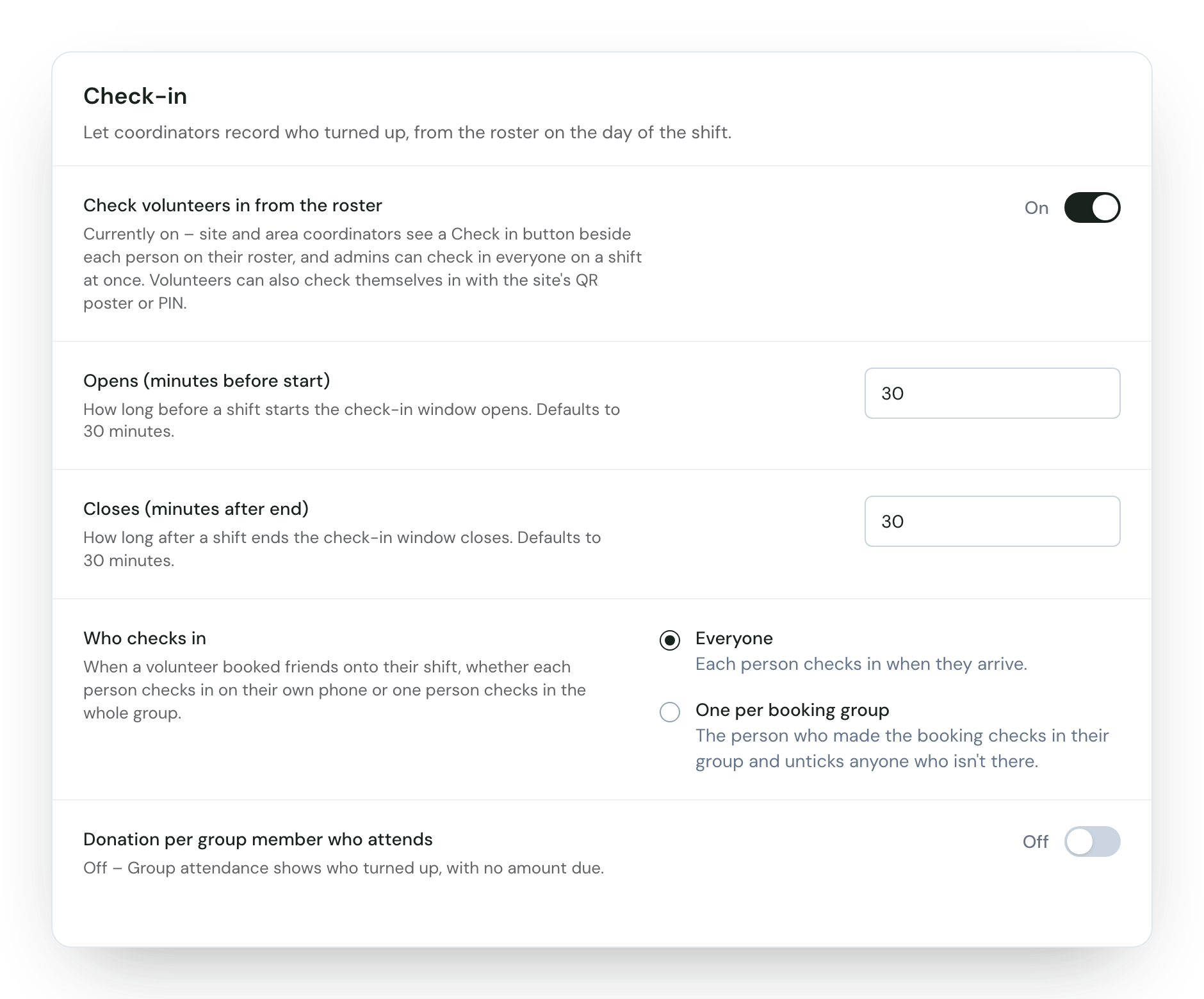
- Go to Settings > This Campaign > Campaign Settings (Owners only) and find the Check-in card.
- Switch on Check volunteers in from the roster.
- Set Opens (minutes before start) and Closes (minutes after end). A shift's check-in window runs from the first number of minutes before it starts to the second number after it ends. Both default to 30.
- Under Who checks in, choose Everyone (each person checks in on their own phone) or One per booking group (the person who booked friends onto a shift checks in the whole group, and unticks anyone who has not arrived).
- Click Save Changes.
The Donation per group member who attends switch is optional. When it is on, Group attendance under Reports > Check-in shows what is due to each group: the group's members who checked in, times the amount you set. Each person counts once a day, for one group. A flagged check-in is left out until an admin clears the flag (see Make the poster and PIN). Leave the switch off if you do not need it. See Reports & Data Exports for the attendance reports.
Make the poster and PIN
Each site gets its own poster and PIN for each day it has shifts. Make it before the day, or on the morning.
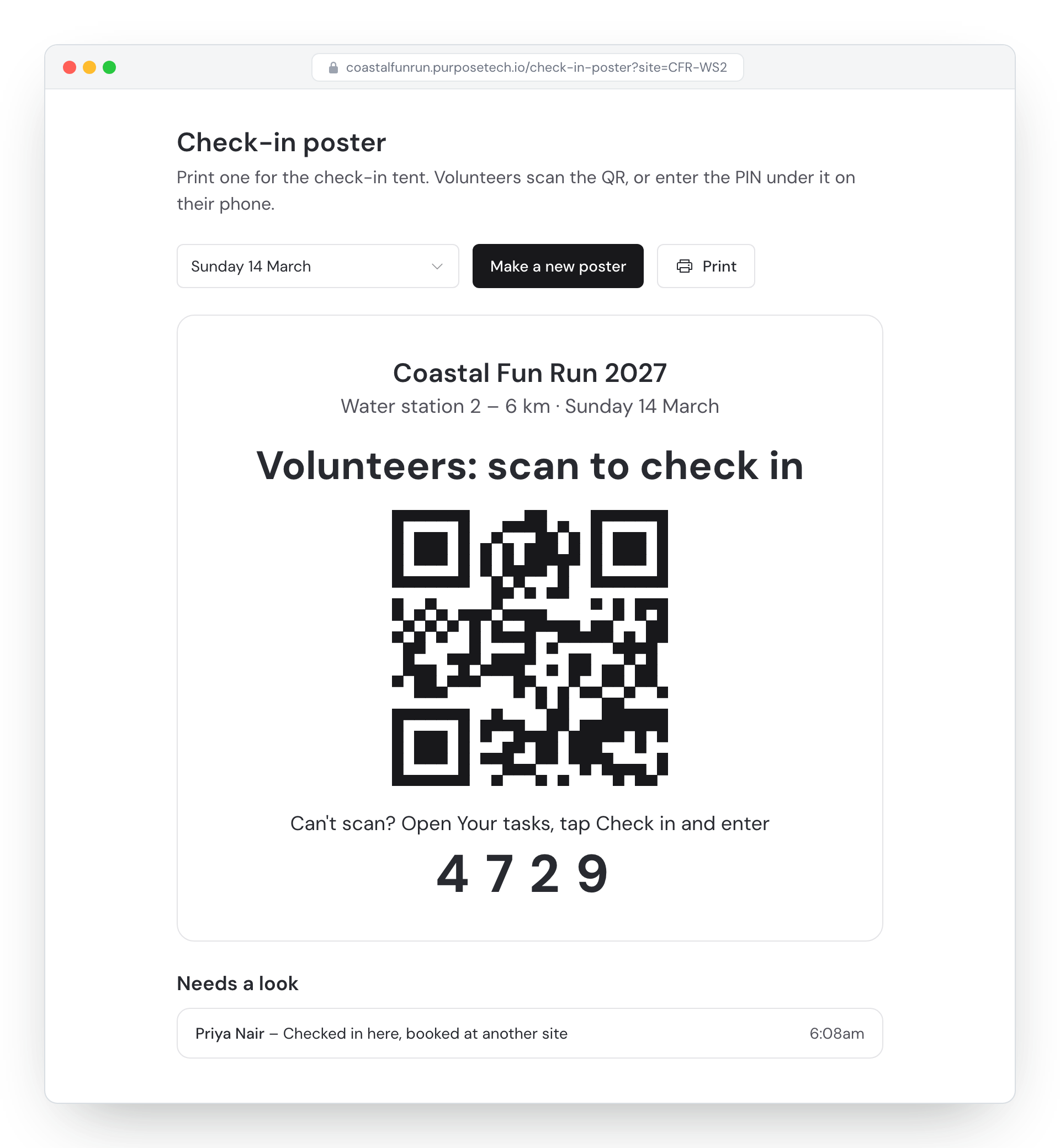
- Sign in to the campaign website and open Rosters.
- Pick the site. In the box at the top of its roster, under Check-in, click Poster and PIN. The button only shows when check-in is on and the site has shifts you look after.
- Choose the day from the list at the top.
- Click Make poster. The poster appears with a QR code and a four-digit PIN underneath it.
- Click Print and put the poster up where volunteers arrive.
The PIN is only shown at the moment the poster is made. If you leave the page and come back, the QR code is still there but the PIN is not. Click Make a new poster to get a fresh poster with a PIN. That stops the earlier poster and its PIN from working, so reprint it and take the old one down.
The poster page also lists check-ins that were flagged, under Needs a look (for example a volunteer who checked in at a different site from the one they booked, or outside their own shift's check-in window), and attempts that found no booking, under Couldn't find a booking. A flagged check-in is still recorded and does not block anyone. It is left out of the group donation figure until an admin clears it. To clear flags, go to Reports > Check-in, open the Flags card, find the person under To review and click Clear. You can add a note. Your name, the time and the note are kept with the flag, and the check-in then counts.
How volunteers check in with the PIN
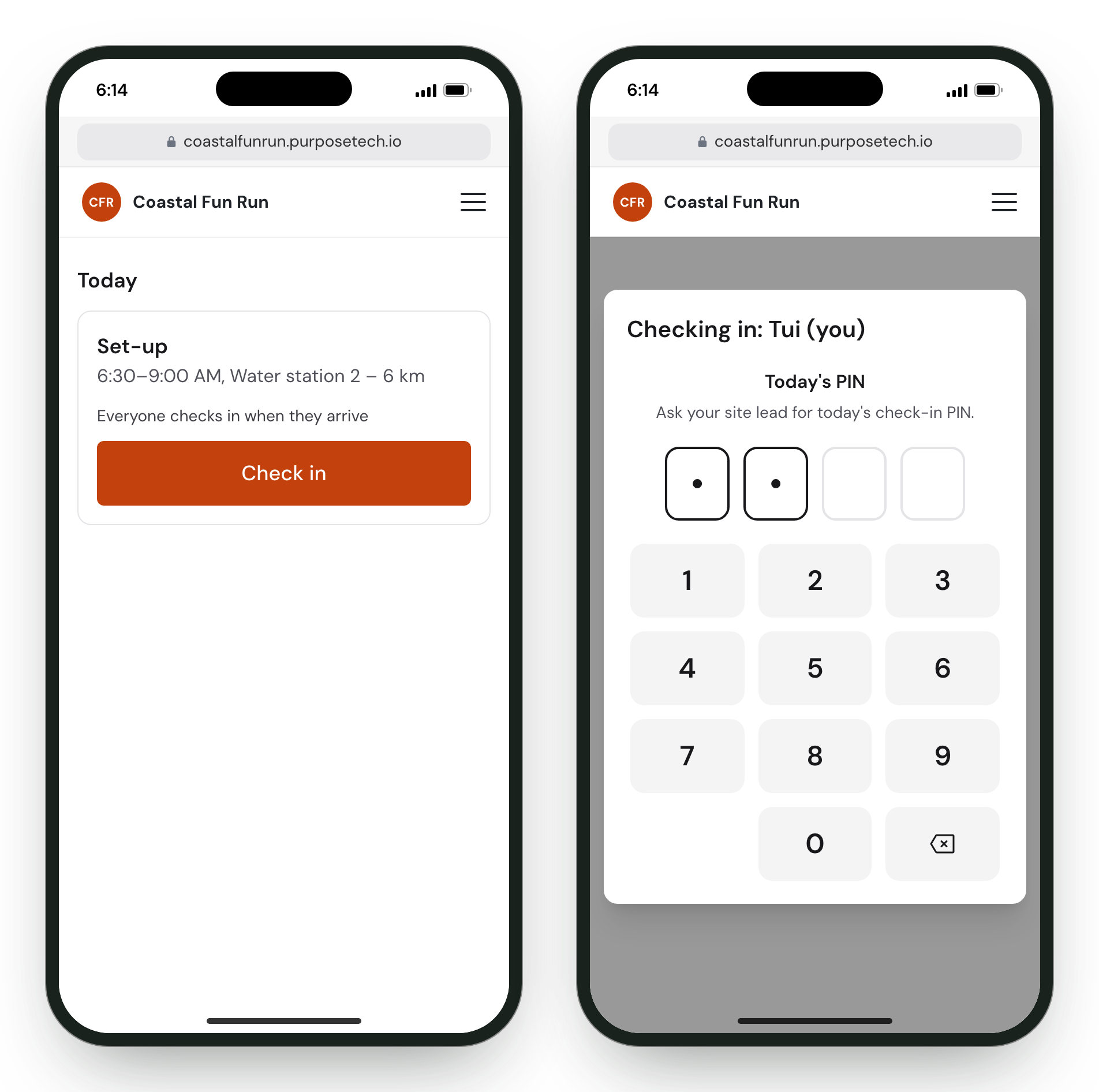
- On the day, the volunteer opens their shifts page on their phone. A Today card shows each booking they have that day.
- Before the window opens, the button reads Check-in opens at and a time. Once it opens, it reads Check in. Tap it.
- The PIN pad opens with Checking in: and their name. They type the four-digit PIN from the poster. It submits by itself on the fourth digit.
- They see You're checked in with the time, and a note to find their site lead. They tap Done.
If the volunteer booked friends and the campaign is set to One per booking group, the same screen lists the group. They untick anyone who has not arrived before they enter the PIN.
The printed poster says "Open Your tasks, tap Check in". On a campaign that uses the default words, that page is called Your shifts. Tell volunteers which one to look for.
When something goes wrong
| What the volunteer sees | What it means |
|---|---|
| That PIN isn't right. 2 tries left. | Each person gets three tries per shift. |
| Too many tries | Three wrong PINs lock PIN check-in for that shift for that person. A coordinator checks them in from the roster. |
| Check-in has closed. | The window has ended. A coordinator can still check them in from the roster. |
| Today's PIN isn't set up yet. | Nobody has made the poster for that site and day. |
| PIN check-in is paused for a few minutes. | Too many wrong PINs came from one connection. Wait, or use the roster. |
If they scan the QR code instead
The QR code opens a check-in page for that site and day.
- A volunteer who is already signed in sees Checking in: with their name and shift, and taps Check in.
- A volunteer who is not signed in is asked Enter your email to find your booking. They type it and tap Find my booking, then Check in.
- If no booking matches, they see We couldn't find your booking – please see the site lead.
A check-in made by typing an email, without signing in, is flagged Email only.
Check people in from the roster
Coordinators can check people in without the PIN. This is the fallback for anyone without a phone, and the way to fix a mistake.
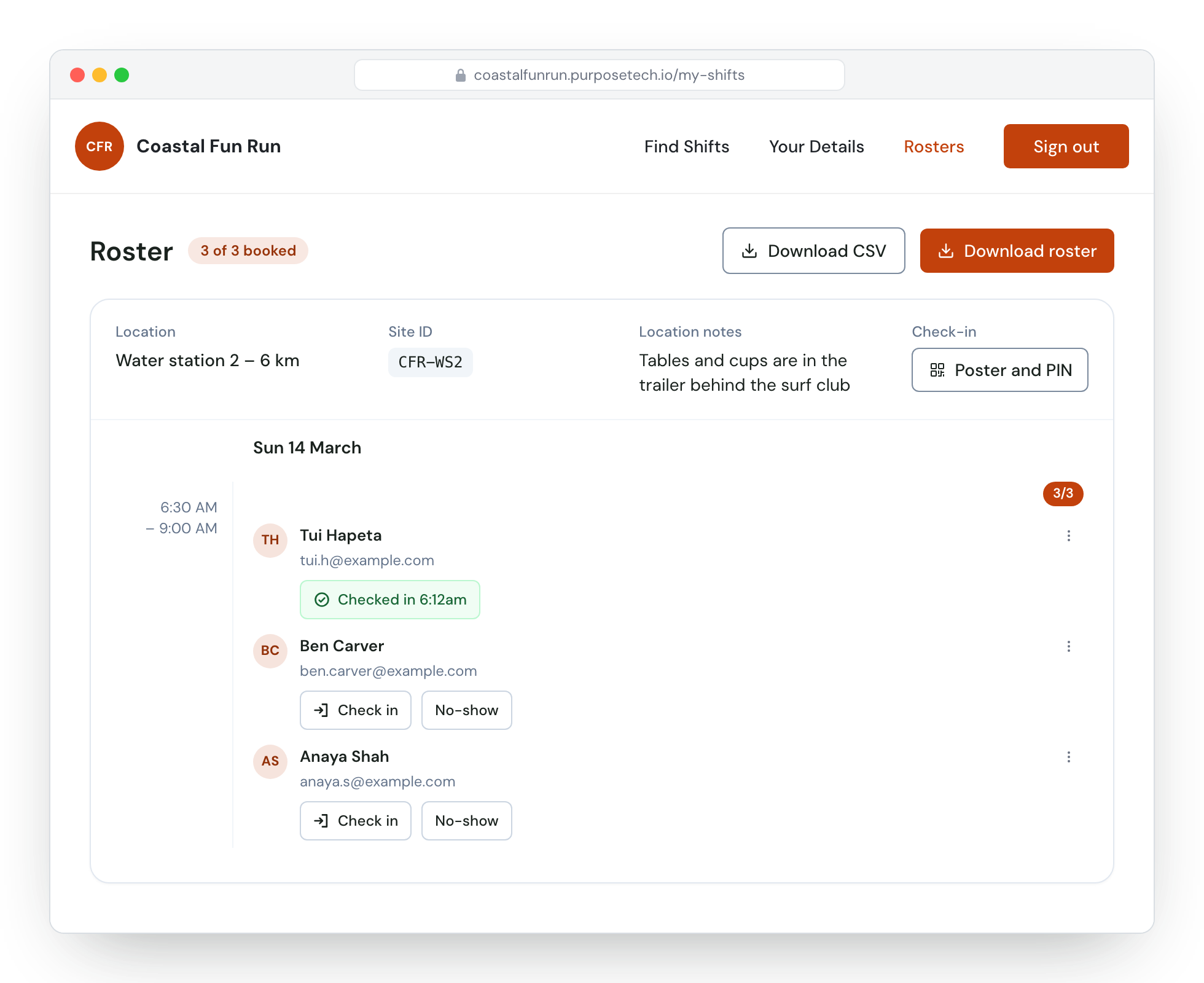
- Open Rosters and pick the site.
- Once the day of the shift has arrived, each booked person shows a Check in button. Click it. Their card changes to a green Checked in pill with the time.
- A message appears with Undo for a few seconds if you tapped the wrong person.
- To change the time later, click the green pill, set Check-in time and click Save time. To remove the check-in, click Undo check-in.
Admins also see Check in everyone above a shift when anyone on it has not been checked in. It asks you to confirm before it checks them all in.
- A coordinator can change or undo a check-in only on the day it was made. After that, ask an admin.
- No-show disappears from a card once the person is checked in. See Recording no-shows.
- Waitlisted bookings and removed accounts have no check-in button.
Common questions
Do volunteers need an app?
No. The check-in runs in the phone's browser on the campaign website.
Can a volunteer check in at the wrong site?
With the QR code, yes. It records, and the poster page lists it under Needs a look so a coordinator can see it.
What if a volunteer arrives outside the window?
The PIN and the QR code work across the whole day at that site, from the opening time of its first shift's window to the closing time of its last shift's window. That includes gaps between shifts. A volunteer who checks in inside that span but outside their own shift's window is checked in and flagged, so it shows under Needs a look. Before the span opens or after it closes, the PIN and QR code say check-in is not open. A coordinator can still check someone in from the roster at any time from the day of the shift, and the check-in is kept and marked as outside the window.
Can I reuse yesterday's poster?
Each poster is for one site on one day. Choose the day at the top of the poster page and make a poster for it.
Next steps
- Roster Management – adding walk-ins, moving people and exports
- Reports & Data Exports – attendance and group reports
- Campaigns & Events – the rest of Campaign Settings